
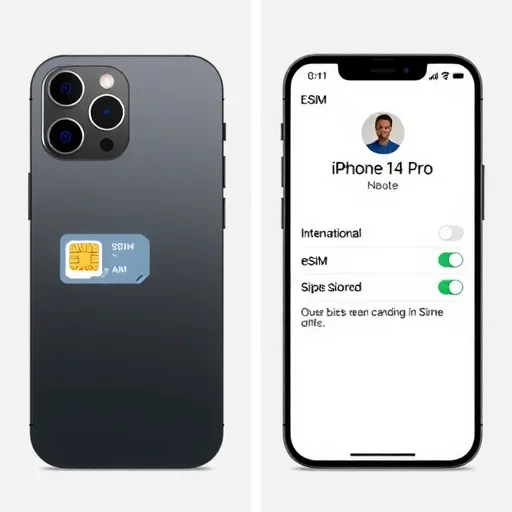
Does the iPhone 14 Support eSIM? Here’s Everything You Need to Know
If you’re considering the iPhone 14—whether you’re upgrading or traveling—you’ve probably heard about its eSIM capabilities. The iPhone 14 series (including iPhone 14, iPhone 14 Plus, iPhone 14 Pro, and iPhone 14 Pro Max) represents a significant shift in how Apple handles cellular connectivity. In the United States, the iPhone 14 models are eSIM‑only—they have no physical SIM card slot. In other regions, they support both a physical SIM and eSIM. This guide explains what that means for you, how to set up eSIM on an iPhone 14, and how to manage dual SIM functionality.
First, let’s clarify the eSIM support across different iPhone 14 models. For all iPhone 14 models globally, eSIM is supported. However, the physical SIM slot availability varies by region:
**US models**: No physical SIM tray. Connectivity is entirely through eSIM. You can store multiple eSIMs (eight or more) and use up to two active eSIMs simultaneously.
**Models sold in other countries (Europe, Asia, etc.)**: These have a physical SIM tray (for a nano‑SIM) and support eSIM. You can use one physical SIM and one eSIM, or two eSIMs (on models with no physical SIM, or via dual eSIM).
So, what does this mean for you? If you’re buying an iPhone 14 in the US, you won’t have a physical SIM slot. You’ll need to set up your carrier plan using eSIM. This can be done during the initial setup or later in Settings. If you’re traveling internationally, you’ll need to use eSIMs for local data plans—there’s no slot for a physical SIM. If you’re buying an iPhone 14 outside the US, you have the flexibility to use either a physical SIM or an eSIM.
Now, let’s talk about how to set up an eSIM on an iPhone 14. There are several methods:
**During setup**: When you first turn on your iPhone 14, you’ll be prompted to set up cellular service. You can transfer your existing phone number from your previous iPhone (if it supports eSIM) or scan a QR code from your carrier.
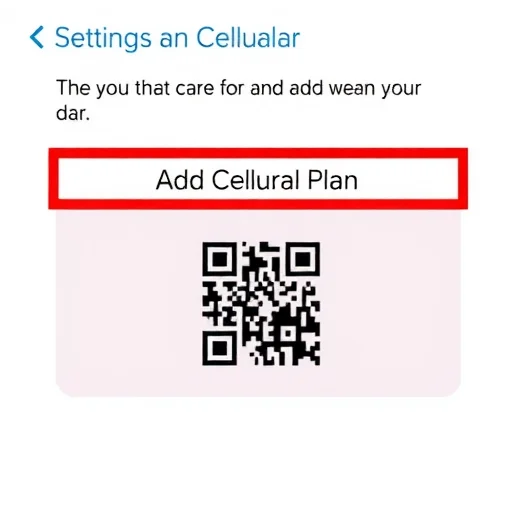
**From Settings**: Go to Settings > Cellular > Add Cellular Plan. You can scan a QR code, enter details manually, or transfer a plan from another iPhone.
**Using a carrier app**: Many carriers (like T‑Mobile, Verizon, AT&T) allow you to activate an eSIM directly through their app. After downloading the app, you can purchase a plan and install the eSIM.
**For travel eSIMs**: You can buy a plan from providers like Airalo, Nomad, or Holafly, receive a QR code, and add it via Settings.
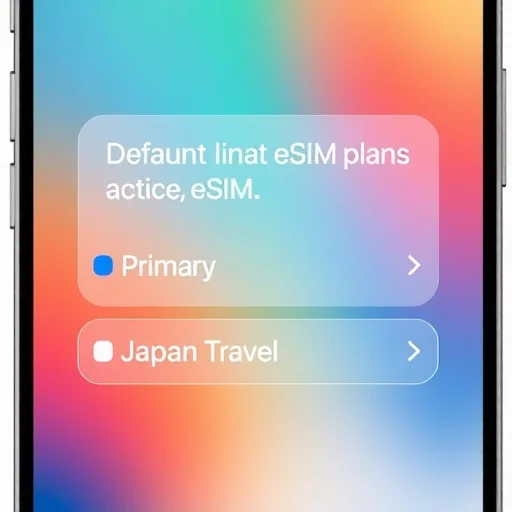
One of the key advantages of the iPhone 14’s eSIM implementation is the ability to store multiple eSIMs. You can have, for example, your home carrier eSIM, a travel eSIM for a trip to Japan, and another for a trip to Europe, all stored on the device. You can switch between them by selecting which line is active for data, calls, and messages. You can also have two active lines at once—useful for keeping your home number active while using a local data plan when traveling.
How do you manage dual eSIMs on iPhone 14? In Settings > Cellular, you’ll see your plans listed. You can choose which line is used for cellular data (you can even set it to switch automatically based on coverage), which line is your default for voice, and which line is used for iMessage and FaceTime. You can also label your plans (e.g., “Primary,” “Travel”) to keep them straight.
Now, let’s address common concerns about eSIM‑only iPhones.
**What if I need to swap SIMs frequently?** With eSIM, swapping is digital. You can add or remove eSIMs in Settings. For travel, you can buy a travel eSIM online, scan the QR code, and have it active in minutes. No need to carry a SIM ejector tool or worry about losing tiny cards.
**What about carrier compatibility?** Most major carriers in the US and many around the world support eSIM. Before traveling, check that your destination has eSIM options. For countries where local carriers don’t support eSIM, you can use a global eSIM provider like Airalo or Nomad, which partner with local networks.
**Can I use my physical SIM from another phone?** If you have a US iPhone 14, no—there’s no slot. If you have an international iPhone 14, yes, you can use a physical SIM in the tray.
**Is eSIM secure?** eSIMs are considered more secure than physical SIMs because they cannot be removed from a lost or stolen phone. You can also remotely erase eSIMs via iCloud if your phone is lost.
Let’s look at a few real‑world scenarios for iPhone 14 eSIM users.
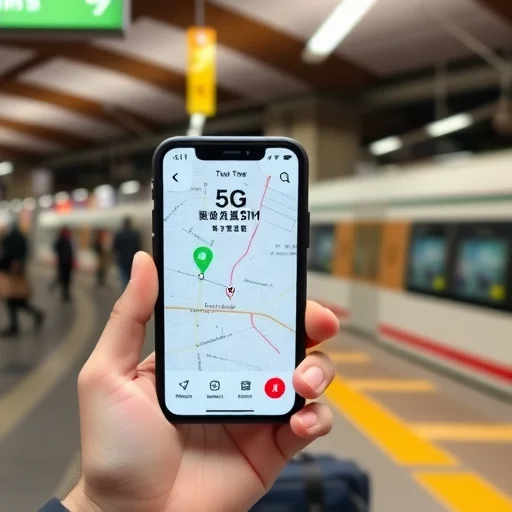
**Scenario 1: US user traveling to Japan.** You have a US iPhone 14 (eSIM‑only). Before your trip, you buy a 10GB Ubigi eSIM for Japan. You add it via Settings. You keep your home eSIM active for calls and texts, but you set the Ubigi eSIM as your data line. When you land, your phone connects to NTT Docomo’s 5G network. You have data instantly, and your home number still works for iMessage and calls over Wi‑Fi calling.
**Scenario 2: International user with physical SIM.** You have a UK iPhone 14 with a physical SIM slot. You use your home physical SIM for your UK number. For a trip to France, you add a Europe‑wide eSIM from Holafly. You set the eSIM for data and keep the physical SIM for calls. You have seamless connectivity without swapping cards.
**Scenario 3: Switching carriers.** You want to switch from Verizon to T‑Mobile. You request an eSIM from T‑Mobile via their app, scan the QR code, and add it as a second line. Once you confirm it’s working, you remove the Verizon eSIM. No visit to a store, no waiting for a physical SIM to arrive.
What about converting a physical SIM to eSIM on iPhone 14? If you have an international iPhone 14 with a physical SIM, you can usually convert it to eSIM through your carrier. For example, on AT&T or T‑Mobile, you can request an eSIM via their app, then remove the physical SIM. This frees up the physical slot for other uses (like a travel SIM if you prefer physical).
In summary, the iPhone 14’s eSIM capabilities offer flexibility, convenience, and security. US models are eSIM‑only, requiring you to manage cellular plans digitally. International models offer a physical SIM slot alongside eSIM support. With the ability to store multiple eSIMs and use two active lines, the iPhone 14 is well‑suited for frequent travelers and dual‑SIM users. Setting up eSIM is straightforward, whether you’re activating with a carrier or adding a travel plan. The iPhone 14 series supports eSIM globally. US models are eSIM‑only (no physical SIM slot); international models have a physical SIM tray plus eSIM. Users can store multiple eSIMs and use two active lines simultaneously. eSIMs can be added via QR code, carrier app, or during setup. Ideal for dual‑SIM usage and international travel.
eSIMGuideFINISHED

I have a US iPhone 14 and was nervous about eSIM‑only at first. But after a trip to Japan using Ubigi, I’m a convert. So easy to add a local eSIM and keep my home number active. No regrets.
Important tip: If you’re traveling internationally with a US iPhone 14, make sure you set up your travel eSIM before you leave. You’ll need Wi‑Fi to scan the QR code. Do it at home, and you’re set.
Switching from a physical SIM to eSIM on my international iPhone 14 was a breeze. Now I have the physical slot free for travel SIMs if I ever need them. Best of both worlds.
I love having dual eSIMs on my iPhone 14. I keep my personal and work numbers on separate eSIMs, both active. No need to carry two phones. Perfect for business travelers.
I was worried about carrier support, but most major carriers now offer eSIM. I’ve used T‑Mobile and Airalo without any issues. The future is digital.