
Accidentally Deleted an eSIM on Your iPhone? Here’s How to Fix It
If you’ve accidentally deleted an eSIM from your iPhone—whether it was your primary cellular plan, a travel eSIM, or a secondary line—don’t panic. The good news is that in most cases, you can recover or reinstall it. However, the exact steps depend on what type of eSIM you deleted and how it was originally installed. This guide walks you through everything you need to know: how to reinstall a deleted eSIM, how to check if it’s truly gone, and what to do if recovery isn’t possible.
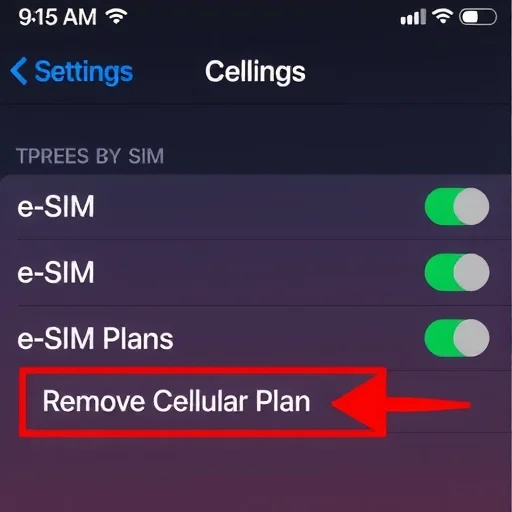
First, let’s understand what happens when you delete an eSIM on an iPhone. When you go to Settings > Cellular and tap “Remove Cellular Plan,” you are deleting the eSIM profile from your device. The profile is removed, and that line will no longer appear in your settings. However, the eSIM itself—the digital credential issued by your carrier—is not destroyed. It remains on the carrier’s side, inactive, until you re‑download it or contact them for assistance. This means that in most cases, deletion is reversible.
If you deleted a travel eSIM from a provider like Airalo, Nomad, Ubigi, or Holafly, recovery is usually straightforward. When you originally purchased the eSIM, you should have received either a QR code or a manual installation code (often via email or within the provider’s app). To reinstall it:
Open the provider’s app or find the original email with the QR code.
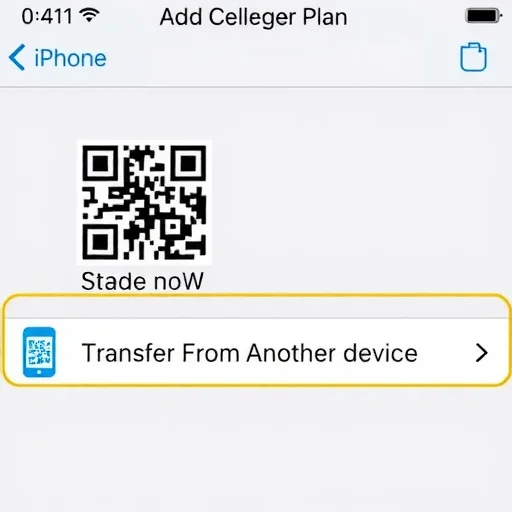
On your iPhone, go to Settings > Cellular > Add Cellular Plan.
Scan the QR code or enter the manual code.
Follow the prompts to reinstall the eSIM.
If the eSIM was still within its validity period and had unused data, it should reactivate with the same remaining data. If the validity period has expired, the plan may no longer be available for reactivation, and you may need to purchase a new plan.
If you deleted your primary cellular eSIM—the one provided by your regular carrier (like Verizon, T‑Mobile, AT&T, or a carrier in your home country)—the recovery process is a bit different. Since this eSIM is tied to your account, you can typically re‑download it without needing to scan a new QR code. Here’s how:
On your iPhone, go to Settings > Cellular > Add Cellular Plan.
Look for an option that says “Transfer From Another Device” or “Set Up eSIM.” Some carriers also have a “Re‑download” option if the eSIM was previously installed.
If you see your carrier listed, tap it and follow the prompts. You may need to sign in to your carrier account or verify your identity.
If the automatic option isn’t available, contact your carrier’s customer support. They can either send you a new QR code via email or remotely push the eSIM to your device. Be prepared to provide your account details and verify your identity.
What if you deleted an eSIM and you no longer have the original QR code or access to the provider’s app? This is where it gets trickier. For travel eSIMs, if you’ve lost the QR code and can’t log into the provider’s app, you may need to contact customer support with your order details. Many providers keep records of your purchase and can resend the QR code. For primary carrier eSIMs, you can always call your carrier—they can usually re‑issue the eSIM over the phone or send a new QR code to an email address on file.
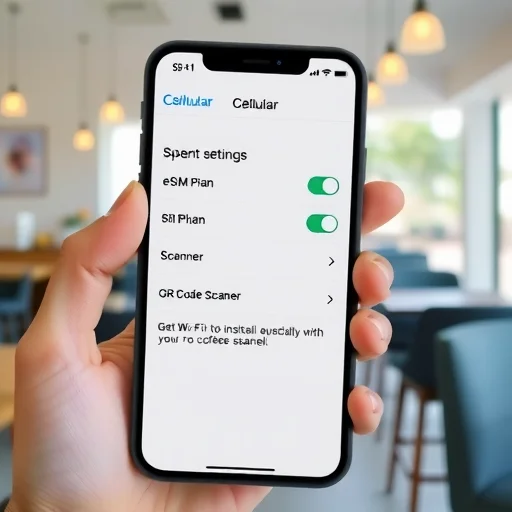
One important nuance: if you deleted an eSIM while you were traveling and don’t have Wi‑Fi access, you may need to find a Wi‑Fi network to download the profile again. Airports, cafes, and hotels can provide that connectivity. If you have a physical SIM as a backup, you can also use its data to download the eSIM.
Now, let’s talk about when deletion might be permanent. If you deleted an eSIM after its validity period expired, or if the provider’s plan was single‑use with no top‑up option, reinstalling may not bring back the original plan. You would need to purchase a new plan. Similarly, if you deleted an eSIM and then performed a factory reset on your iPhone without backing up, the eSIM is removed from the device and may not be recoverable without contacting the carrier. However, if you have an iCloud backup, eSIMs are not backed up for security reasons—you’ll need to re‑install them manually.
What if you deleted an eSIM and now you’re seeing “No Service” or can’t make calls? That likely means you deleted your primary line. The immediate fix is to reinstall it using the steps above. If you’re unable to, you can also use a physical SIM if your phone has a slot, or contact your carrier to activate a new eSIM. In the meantime, you can still use Wi‑Fi for iMessage, FaceTime, and other internet‑based services.
I recently had a friend who accidentally deleted her Ubigi eSIM halfway through a two‑week trip to Japan. She panicked, thinking she’d lose all her remaining data. I had her open the Ubigi app, go to “My Plans,” and there was an option to reinstall the eSIM. She scanned the QR code that was still in the app, and within minutes, the plan was back with the exact same data balance. The key was that the plan was still within its validity period.
Another friend deleted his primary AT&T eSIM when trying to disable a travel eSIM. He called AT&T support, verified his identity, and they sent a new QR code to his email within five minutes. He scanned it, and his number was back.
If you’re someone who frequently uses multiple eSIMs, here’s a preventative tip: before deleting any eSIM, make sure you have the QR code or re‑installation method saved somewhere safe—either in the provider’s app, a cloud storage folder, or a secure note. Also, label your eSIM plans clearly in Settings (you can rename them by tapping on the plan and selecting “Cellular Plan Label”) so you don’t accidentally delete the wrong one.
Ultimately, accidentally deleting an eSIM on iPhone is rarely a permanent problem. Travel eSIMs can usually be reinstalled via the provider’s app or original QR code. Primary carrier eSIMs can be re‑downloaded through settings or by contacting your carrier. The most important step is not to panic—take a breath, find Wi‑Fi if you need it, and follow the recovery steps for your specific type of eSIM. With a little patience, you’ll be back online. Accidentally deleting an eSIM on iPhone is usually reversible. Travel eSIMs can be reinstalled via the provider’s app or original QR code. Primary carrier eSIMs can be re‑downloaded through Settings > Add Cellular Plan or by contacting your carrier. Always keep a copy of your QR codes and ensure you have Wi‑Fi access for recovery.
iPhoneTipsFINISHED

Important tip: Before deleting any eSIM, take a screenshot of the QR code and save it to your notes or cloud. I did that after reading this guide, and it saved me when I accidentally deleted my Ubigi eSIM. Quick recovery.
I accidentally deleted my Airalo eSIM in the middle of a trip to France. Opened the Airalo app, went to my plans, and there was a “reinstall” button. Scanned the QR code again and it was back with all my remaining data. Saved my trip!
This happened to me at the airport—deleted my eSIM right before boarding. Used airport Wi‑Fi to reinstall via the provider’s app. Was back up before takeoff. Don’t panic, just follow the steps!
Heads-up: If you delete a travel eSIM after its expiration date, you can’t recover the plan. You’ll need to buy a new one. But if it’s still valid, you’re fine. Great guide.
I deleted my primary Verizon eSIM by mistake. Called support, verified my identity, and they emailed me a new QR code in minutes. Super easy. Just be patient and have your account info ready.