
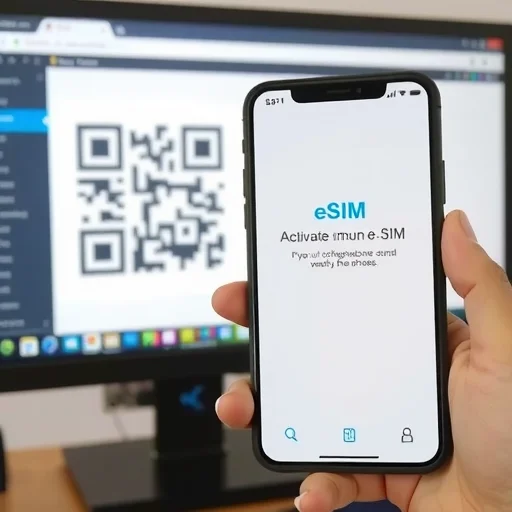
How to Activate an eSIM? Here’s a Simple Step‑by‑Step Guide
If you’ve purchased an eSIM—whether for travel, a new line, or switching from a physical SIM—you might be wondering how to activate it. The good news is that activating an eSIM is a straightforward process, and it usually takes just a few minutes. This guide walks you through how to activate an eSIM on both iPhone and Android, covers different methods (QR code, app, manual entry), and explains what to do if you run into issues.
First, let’s understand what you need before you start. To activate an eSIM, you’ll need:
An unlocked phone that supports eSIM (most modern iPhones and many Android phones).
An eSIM plan from a carrier or travel eSIM provider (you’ll usually receive a QR code, activation code, or a link to an app).
A stable internet connection (Wi‑Fi) to download the eSIM profile.

Now, let’s go through the activation steps for the most common methods.
**Method 1: Activating an eSIM via QR Code (iPhone)**
Open **Settings** > **Cellular** (or **Mobile Data**).
Tap **Add Cellular Plan**.
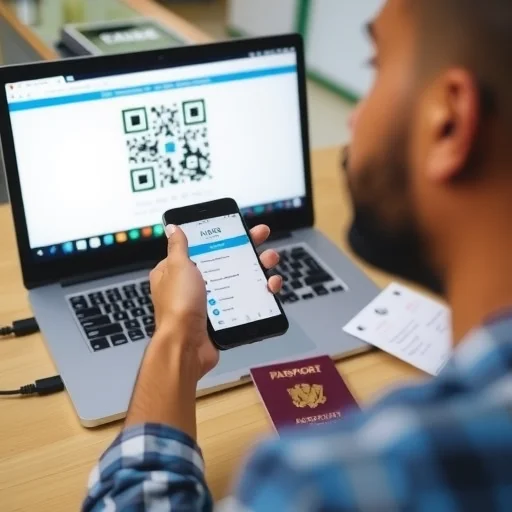
Point your camera at the QR code provided by your carrier or eSIM provider.
Follow the on‑screen instructions. You may be asked to label your plan (e.g., “Travel,” “Primary”) and choose settings for calls, messages, and data.
Once added, you can select which line is your default for data and voice.
**Method 1: Activating an eSIM via QR Code (Android)**
The steps vary slightly by manufacturer, but here’s the general process:
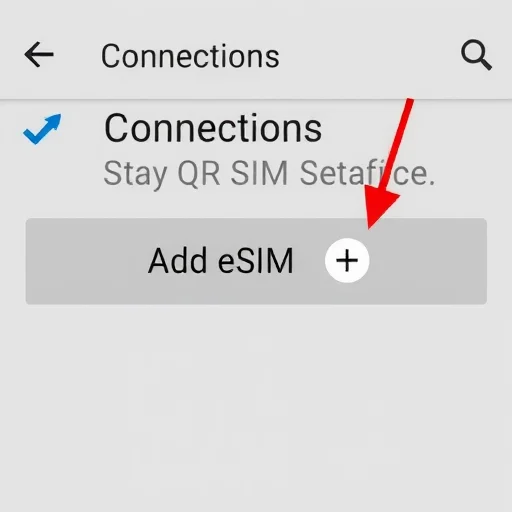
Go to **Settings** > **Connections** > **SIM Manager** (or **Network & Internet** > **Mobile Network**).
Tap **Add eSIM** or **Add mobile plan**.
Select **Scan QR code**.
Point your camera at the QR code.
Follow the prompts to complete activation. You may need to label the plan and set default preferences.
**Method 2: Activating via a Carrier App**
Many carriers (like T‑Mobile, Verizon, AT&T) and travel eSIM providers (like Airalo, Nomad) offer activation through their apps.
Download the carrier’s app (e.g., My Verizon, T‑Mobile, Airalo) on your phone.
Log in to your account or purchase a plan.
Look for an option like “Activate eSIM” or “Install eSIM.”
Follow the in‑app instructions. The app will typically download and install the eSIM automatically, without needing to scan a QR code.
Once installed, you’ll see the plan in your phone’s cellular settings.
**Method 3: Manual Entry (if QR code isn’t available)**
If you can’t scan a QR code, you can often enter the details manually.
On iPhone: Settings > Cellular > Add Cellular Plan > “Enter Details Manually” at the bottom.
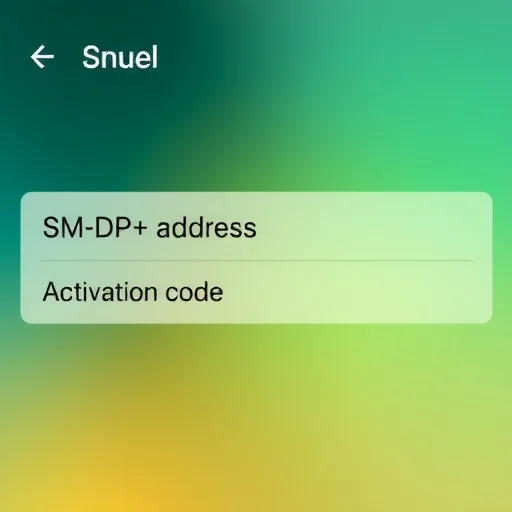
On Android: Settings > Connections > SIM Manager > Add eSIM > “Enter details manually” or “Activation code.”
You’ll need the SM‑DP+ address and activation code provided by your carrier.
Enter the information and follow the prompts.
**What happens after activation?**
Once the eSIM is installed, you’ll see it listed in your cellular settings. You can:
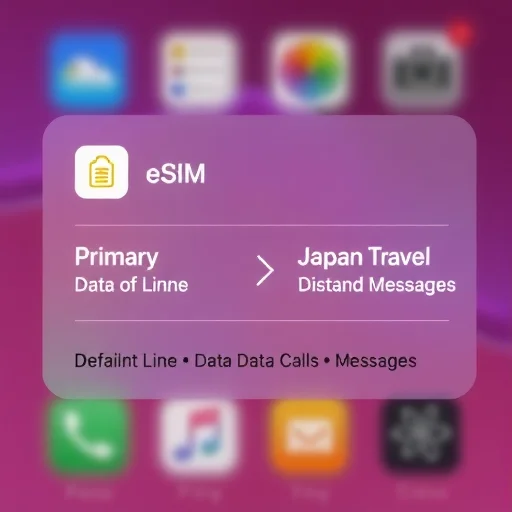
**Label** the plan (e.g., “Primary,” “Travel”) to easily identify it.
**Choose your default line** for cellular data and voice calls.
**Enable “Allow Cellular Data Switching”** (iPhone) to automatically use the other line if the current one has poor coverage.
**Turn the line on or off** as needed.
If you’re traveling, you may want to set the travel eSIM as your data line while keeping your home line active for calls (if your phone supports dual SIM). This way, you avoid roaming charges and have data the moment you land.
**Common activation issues and how to solve them**
**QR code not scanning**: Ensure you’re holding the phone steady and the code is well‑lit. If it still fails, try the manual entry method using the details provided.
**No internet connection**: You need Wi‑Fi to download the eSIM profile. If you’re traveling, connect to airport Wi‑Fi before scanning.
**Phone not compatible**: Verify that your phone is unlocked and eSIM‑compatible. iPhones from XS/XR onward support eSIM; many Android phones (Pixel 3 and newer, Samsung S20 and newer) do too.
**Error message**: If you see an error like “Cellular plan cannot be added,” contact your carrier or eSIM provider. They may need to resend the QR code or activate the plan on their end.
**Example: Activating a travel eSIM for Japan**
Let’s say you’ve purchased a 10GB Ubigi eSIM for Japan. Here’s how you’d activate it:
Before departure, connect to Wi‑Fi.
Open the Ubigi app (or scan the QR code emailed to you).
Follow the prompts to install the eSIM. The app will guide you through scanning the QR code or automatically installing.
Once installed, label the plan “Japan Travel.”
When you arrive in Japan, go to Settings > Cellular > Cellular Data and select “Japan Travel.” Your phone will connect to the local network.
You can keep your home SIM active for calls (if your phone supports dual SIM) and use the travel eSIM for data.
**Example: Activating a new carrier eSIM**
If you’re switching to a new carrier like T‑Mobile and want to use eSIM:
Download the T‑Mobile app on your new phone (using Wi‑Fi).
Log in or sign up for service.
Select “Activate eSIM” or “Add a new line.”
Follow the prompts. The app will push the eSIM to your phone.
Once installed, you can remove the physical SIM from your old phone.
In summary, activating an eSIM is a simple process that typically takes only a few minutes. Whether you use a QR code, a carrier app, or manual entry, the steps are straightforward. Just ensure you have a Wi‑Fi connection, a compatible phone, and the activation details from your provider. With your eSIM activated, you’ll enjoy the flexibility of digital cellular service without the need for a physical SIM card. Activating an eSIM involves scanning a QR code, using a carrier app, or entering details manually. Steps vary slightly by device, but the process takes only minutes. Ensure your phone is unlocked and eSIM‑compatible, and have a Wi‑Fi connection. After activation, label your plan and set default preferences for data and voice.
DigitalSIMGuideFINISHED
I had trouble scanning a QR code on my Android, but the manual entry method worked. Just entered the SM-DP+ address and code. Easy once you know what to do.
When I activated my travel eSIM, I labeled it “Travel” and set it as my data line. Kept my home SIM for calls. Worked perfectly for my trip. Dual SIM is amazing.
Activated my first eSIM using the Airalo app. Super easy—downloaded the app, bought a plan, and the app installed it automatically. No QR code needed. Took 2 minutes. Highly recommend for travel.
Important tip: If you’re using a QR code, make sure you have a stable Wi‑Fi connection. I tried at the airport and the connection was spotty. Better to do it at home before you leave.
Verizon’s app made activation a breeze. Signed in, selected “Activate eSIM,” and it pushed to my phone. No QR code needed. Much simpler than I expected.